
USBC charging for a PS3 Controller
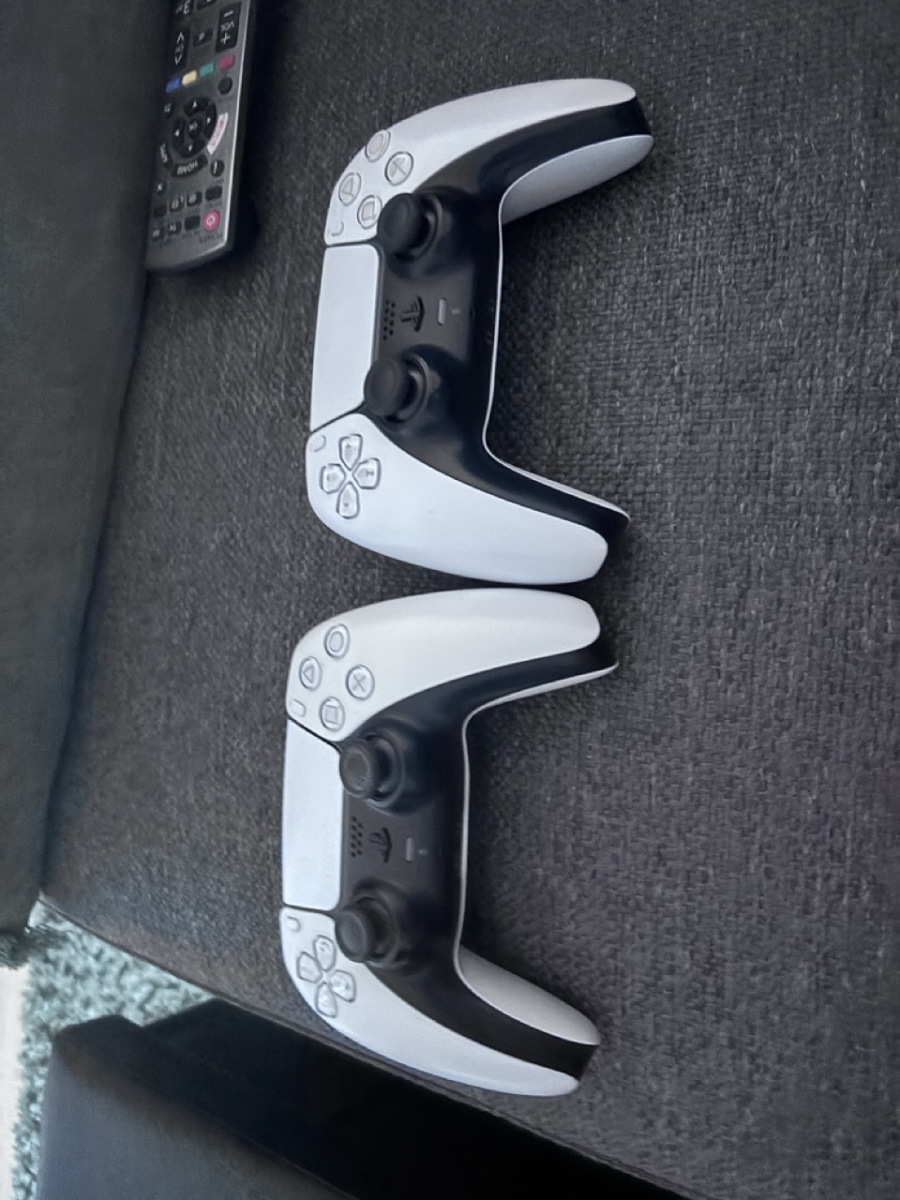
Everyone knows how annoying it is to charge PS3 controllers, you have to have them plugged into a PC or the PS3 itself powered on, well I attempted to work around that.
The solution
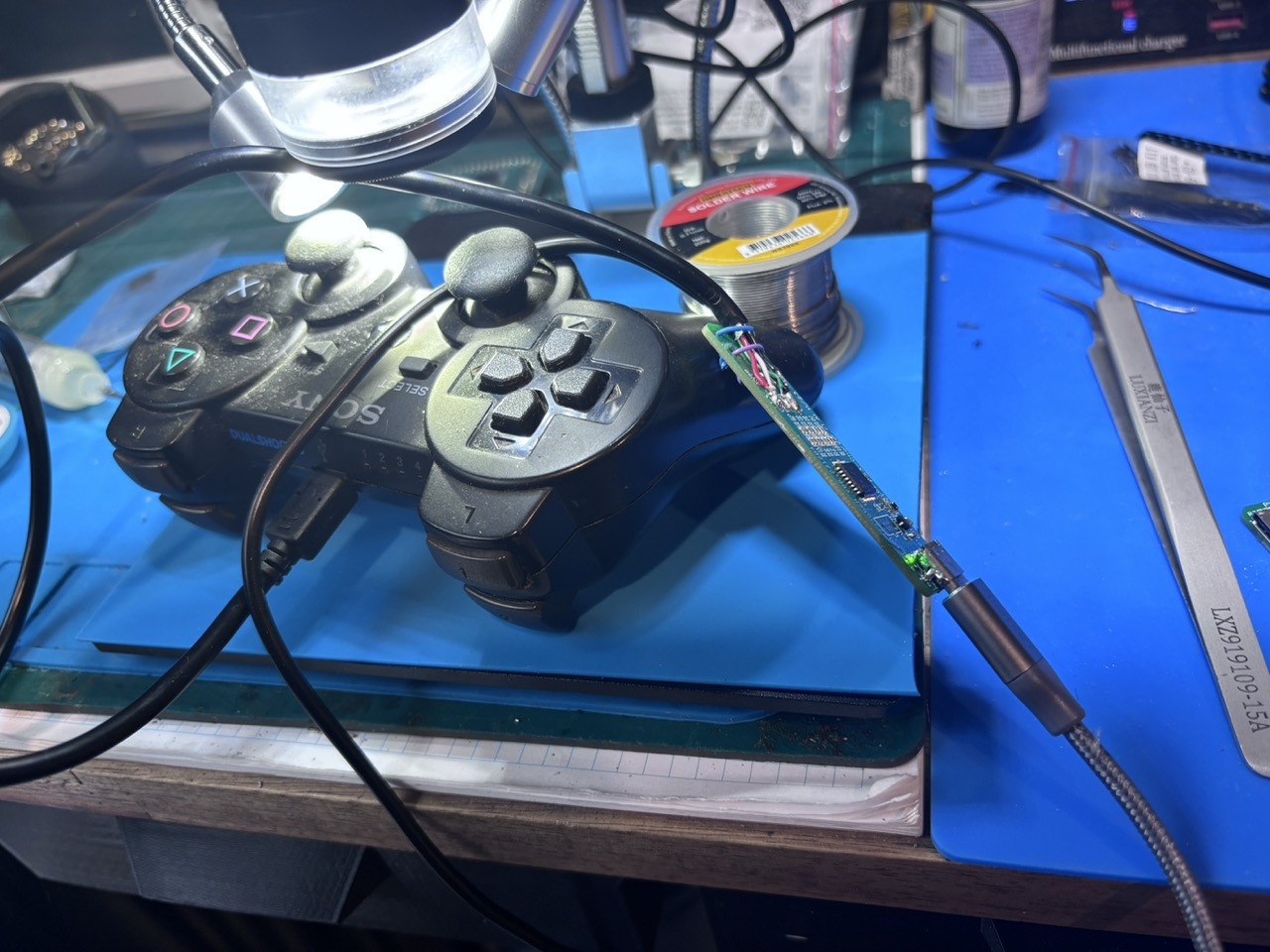
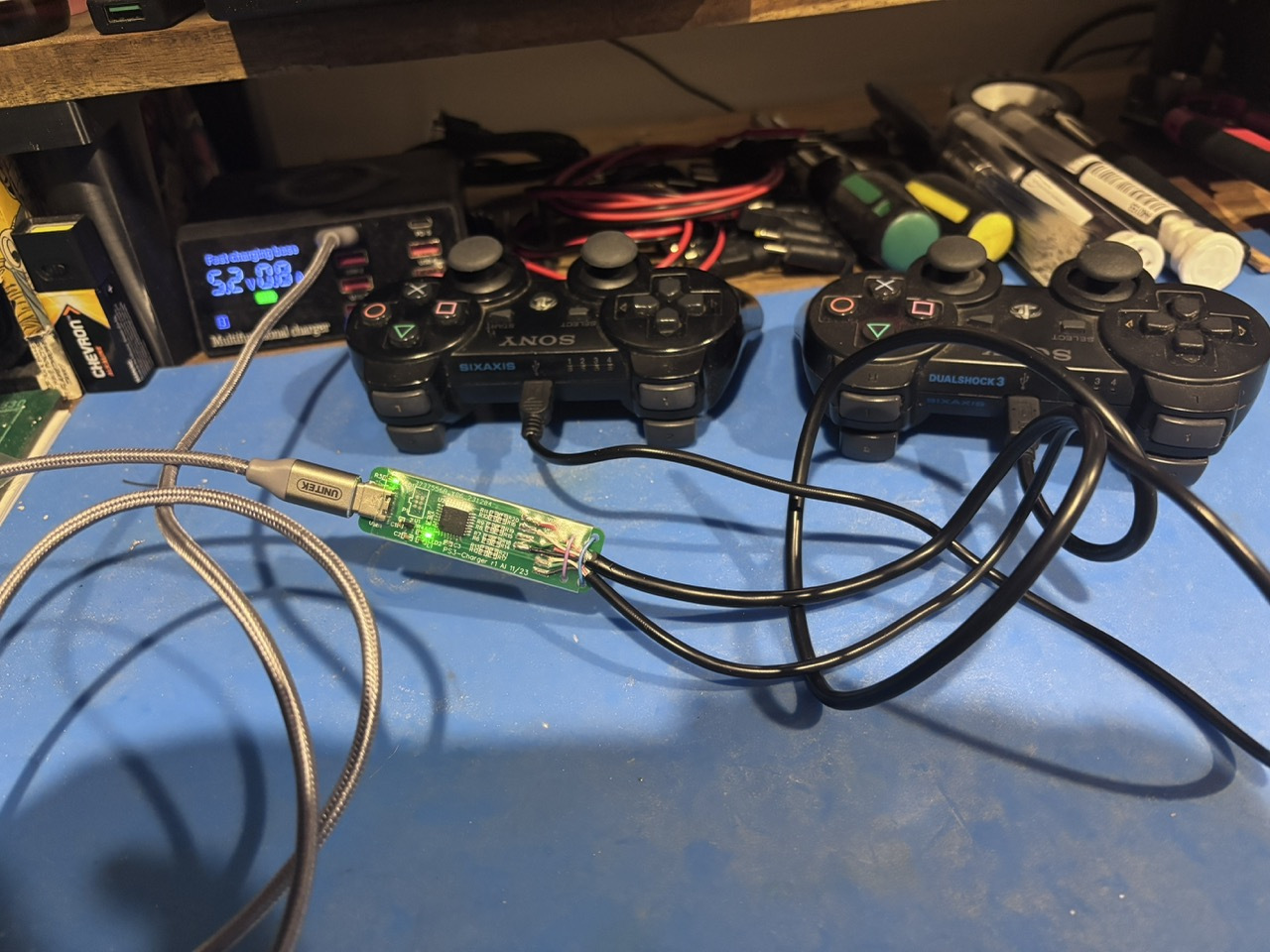
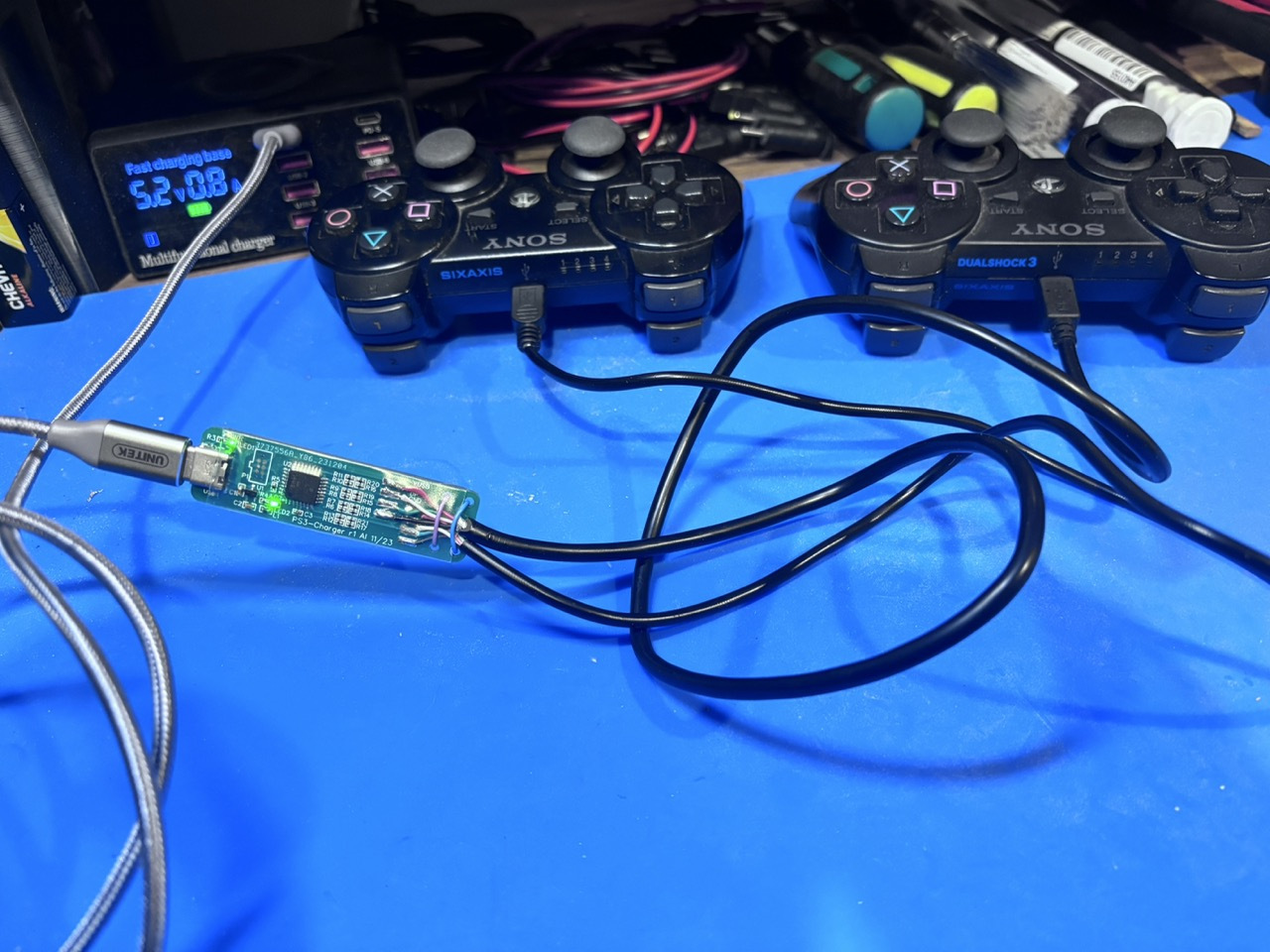
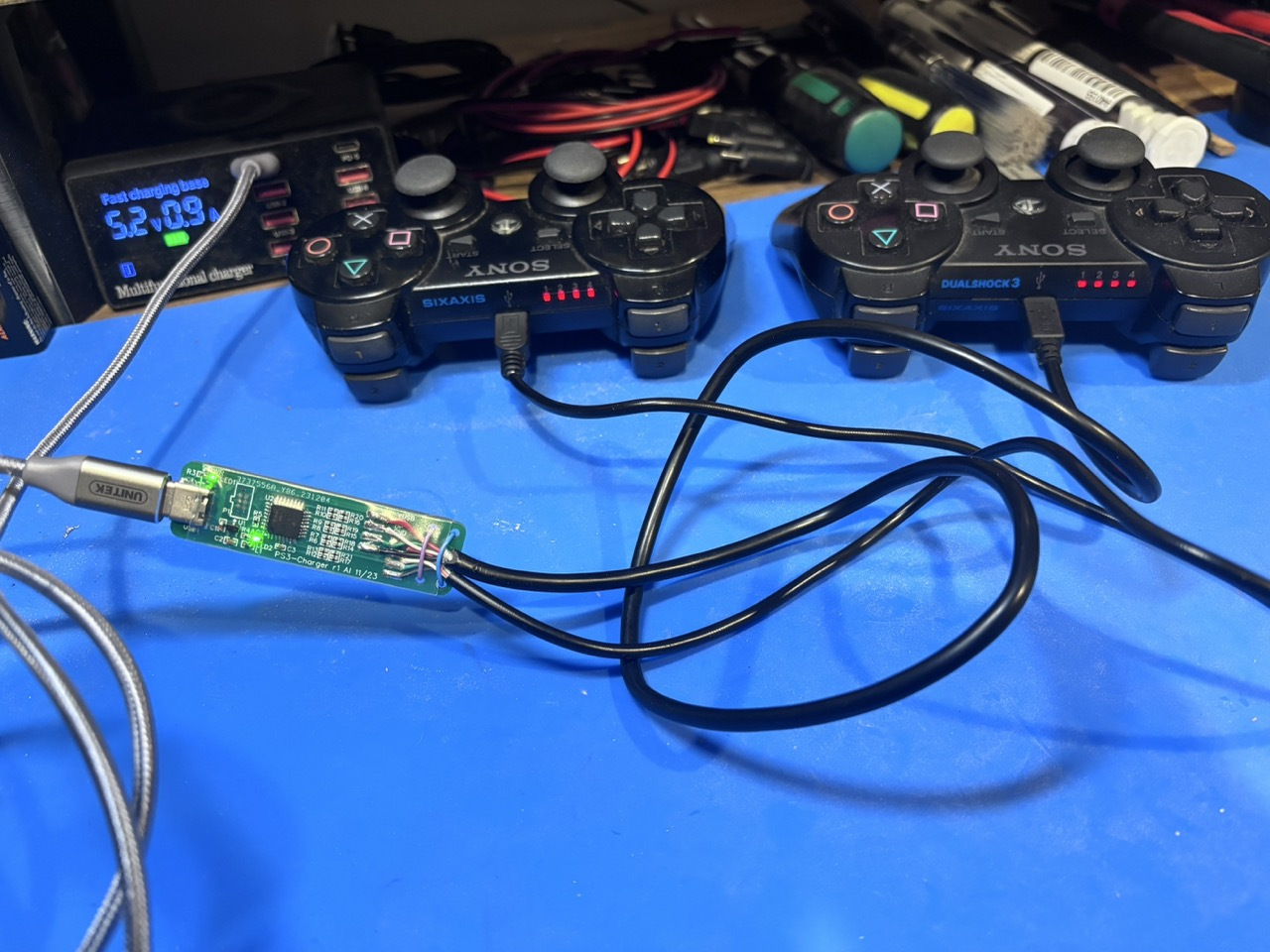
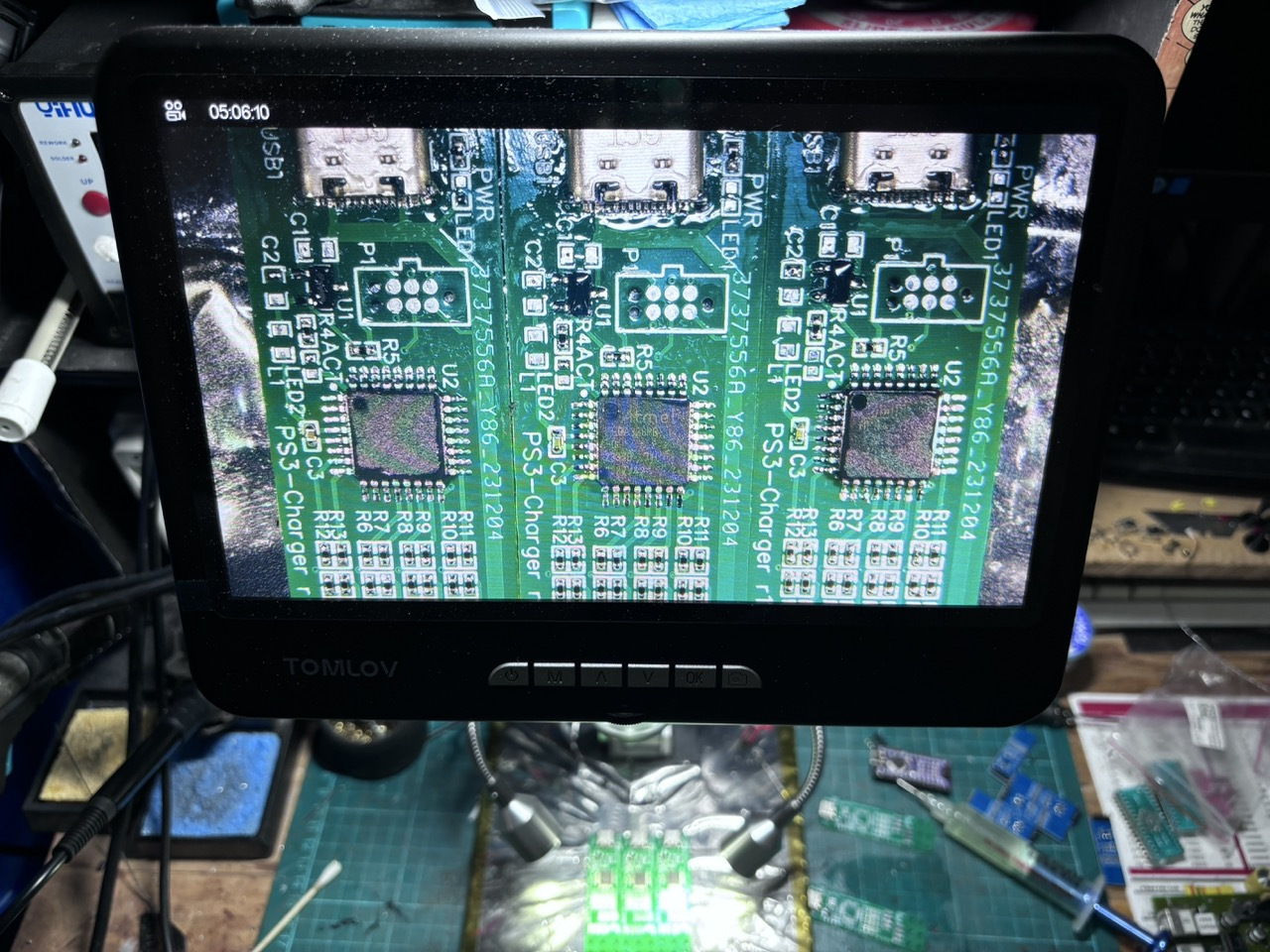
A while ago, I came across this Github project thats aimed to solve this issue by using an ATmega chip and USBC. The PS3 controllers use USB handshakes before they will start to charge, which is why only a PC or PS3 will charge them. This github project, uses the ATmega chip to initiate the USB handshake and the start charging up to 4 controllers via a USBC input.
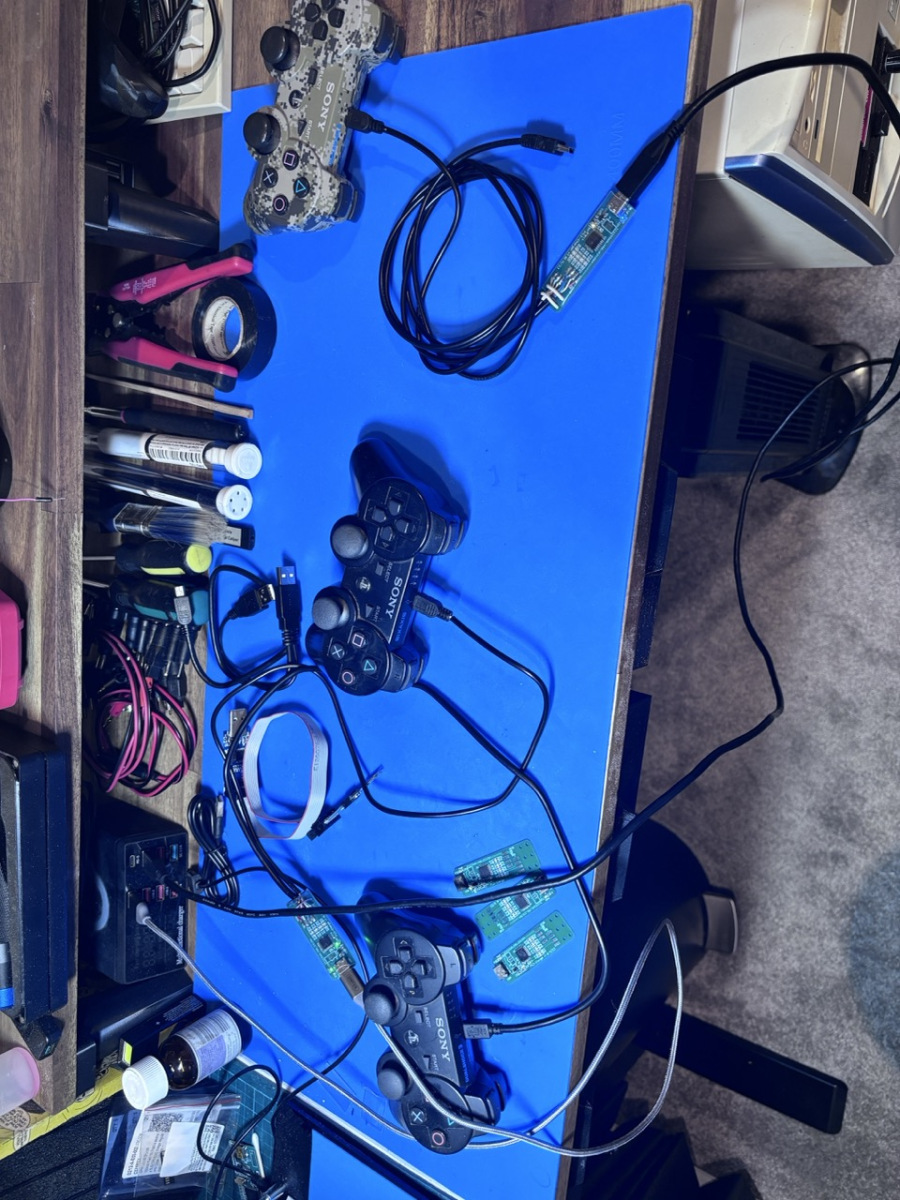
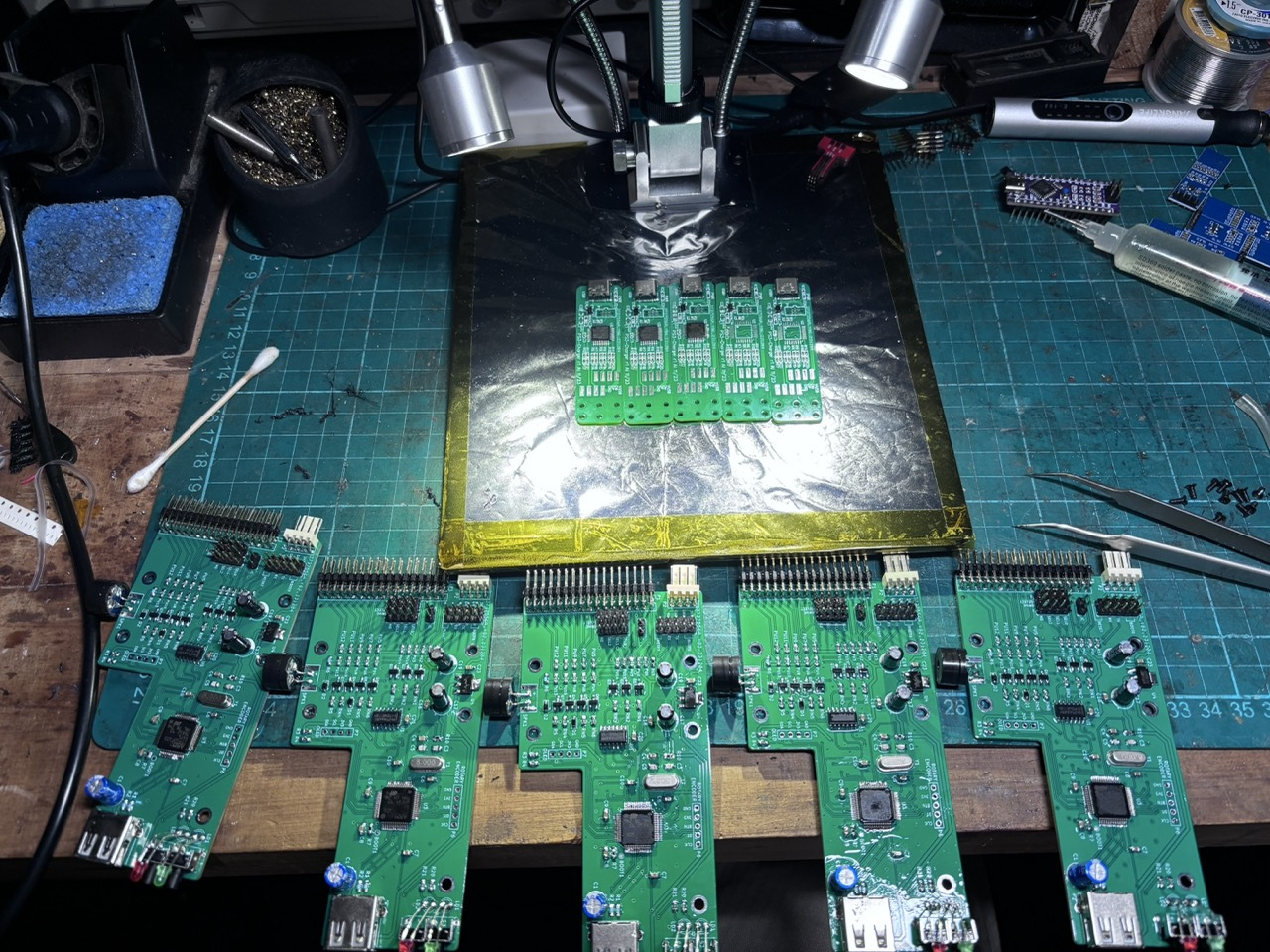
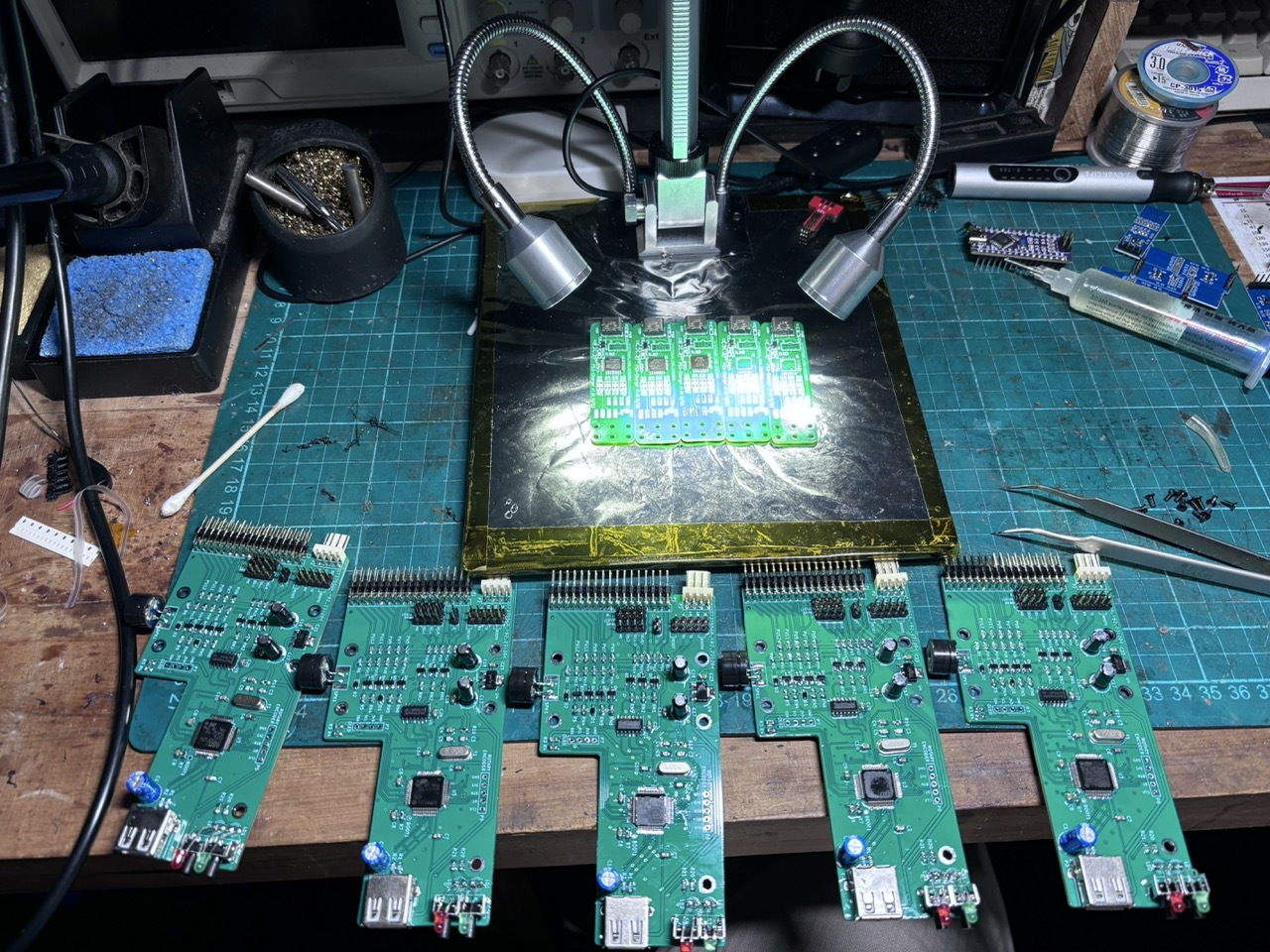
Safe to say, the project was more annoying that I expected it to be. It uses 0402 SMD parts and an annoying way to program the chip using pogo pins ( of which you needed to make a custom adapter for, AND the you still had to solder on wires anyway. I think in future the PCB should be redesigned to use normal pins for programming as there is actually enough space.
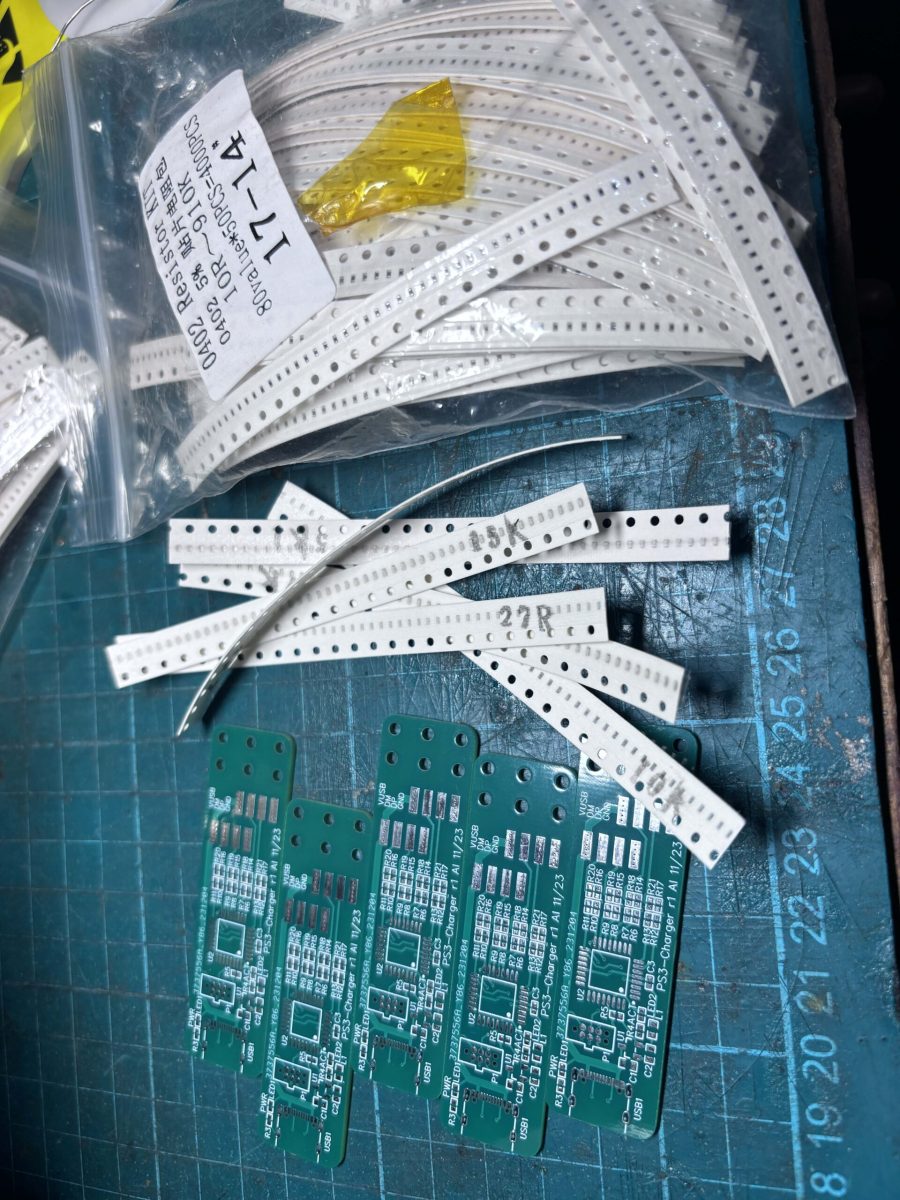
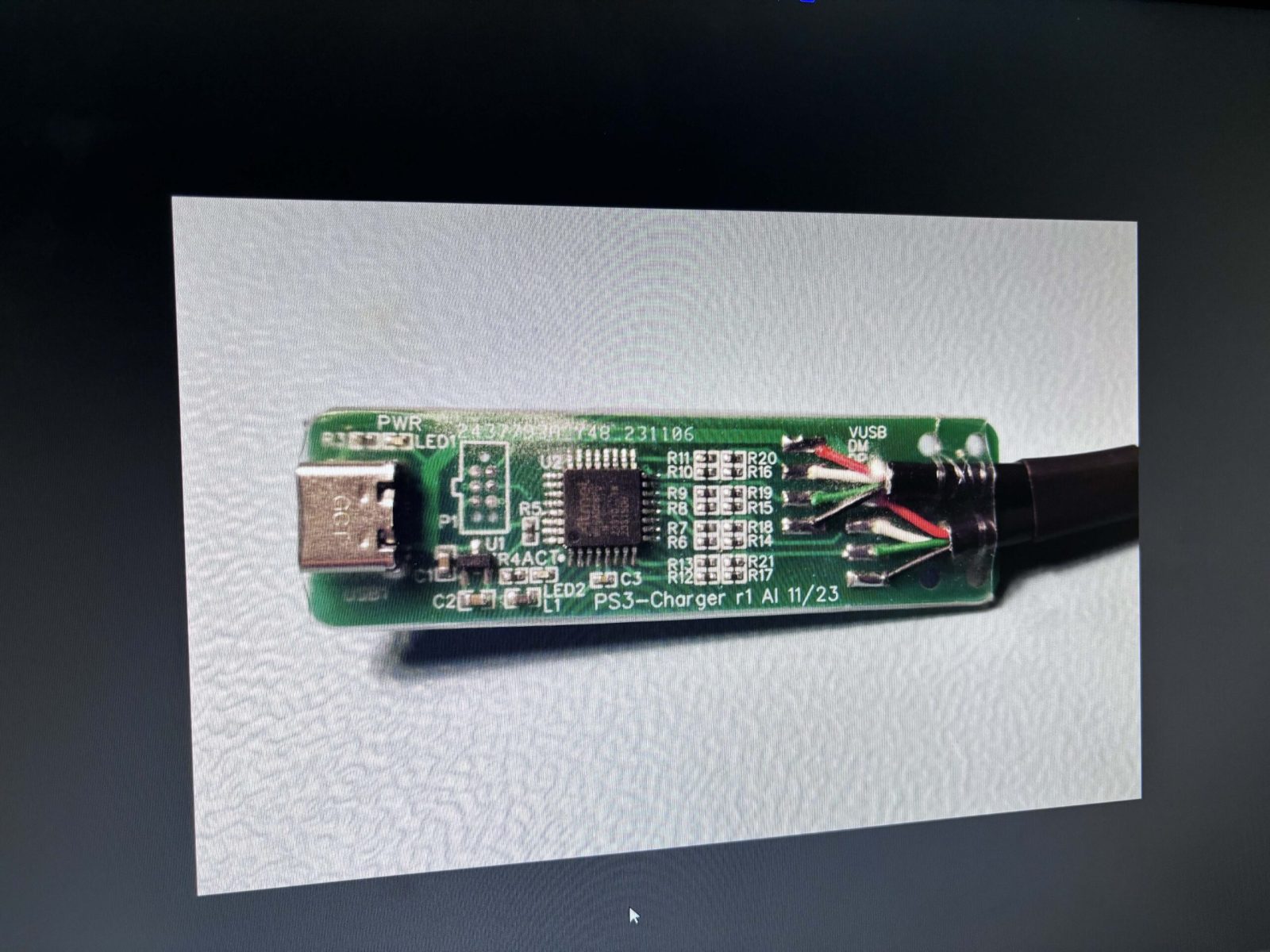
Programming
This was buy far the worst part of the project, the github had very little detail on how to actually program these chips and to get the 12mhz internal clock signal calibrated correctly. I did ask some questions on the github but ended up writing my own instructions.
STEP 1: Connect the Programmer
Make sure your programmer is wired to the ATmega328PB correctly:
MISO → MISO (pin 18)
MOSI → MOSI (pin 17)
SCK → SCK (pin 19)
RESET → RESET (pin 1)
VCC → VCC (pin 7 or 20)
GND → GND (pin 8 or 22)STEP 2: Check Current Fuse Settings
Open your terminal and run:avrdude.exe -C”avrdude.conf” -v -patmega328pb -cusbasp -U lfuse:r:-:i -U hfuse:r:-:i -U efuse:r:-:i:i
You’ll get something like:
lfuse: 0x62
hfuse: 0xD9STEP 3: Calculate New LFUSE with CKOUT Enabled
https://eleccelerator.com/fusecalc/fusecalc.php?chip=atmega328pThat becomes: 0x22
STEP 4: Program the New LFUSE
Run:avrdude.exe -C”avrdude.conf” -v -patmega328pb -cusbasp -U lfuse:w:0x22:m
Now CKOUT is enabled. The system clock will appear on PB0 (pin 14).STEP 5: Measure the Clock Output
Connect a frequency counter or oscilloscope probe to PB0 and GND.You should see a signal close to 12 MHz.
If not exactly 12 MHz, that’s expected — the internal oscillator needs calibration.STEP 6: Calibrate the Internal Oscillator (OSCCAL)
In your firmware:
Use a loop that outputs a square wave (e.g., toggle a pin).
Adjust the OSCCAL register value (0x00 to 0xFF) until the frequency on PB0 is as close to 12 MHz as possible.STEP 7: Compile with Atmel Studio 7
Import ps3-charger.c into Atmel Studio and compile to a hex file.
You should enter the clock signal into the source code from earlierSTEP 8: Flash to ATmega328PB
Connect programmer (e.g., USBasp), and flash the new file, for example:avrdude.exe -C”avrdude.conf” -v -patmega328pb -cusbasp -U flash:w:ps3charger.hex
avrdude -c usbasp -p m328pb -U flash:w:PS3-Charger-C7-250.hex
STEP 9: (Optional) Restore LFUSE to Disable CKOUT
Once calibrated, you can turn off CKOUT to regain use of PB0.
If your original lfuse was 0x62, restore it:avrdude -c usbasp -p m328pb -U lfuse:w:0x62:m
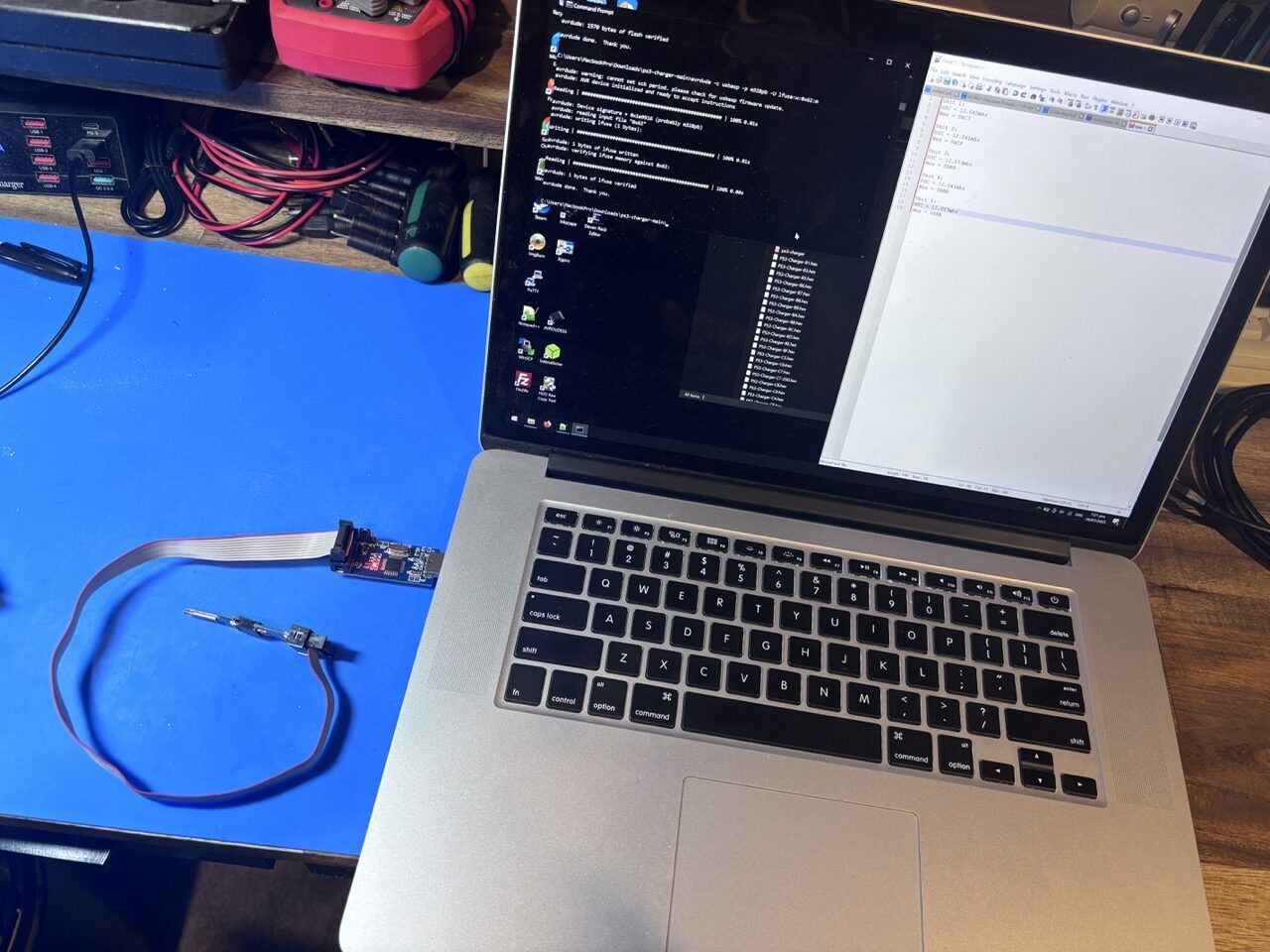
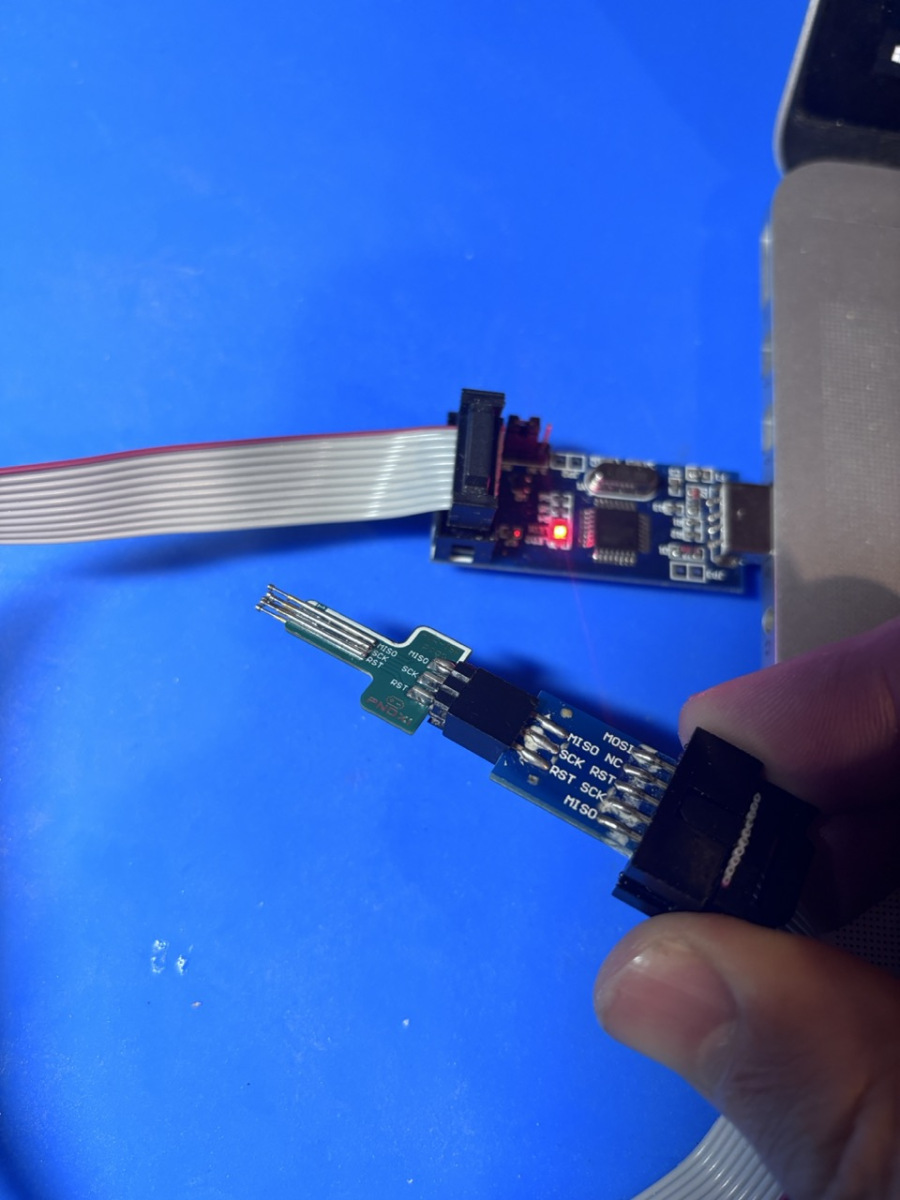
Testing them out
After programming them finally, I found that it didnt work very well with just 1 controller plugged in, the timing or capacitance on the USB lines must not be right, 2 controllers always started charging immediately. There is some notes in the schematic to fix that for a new revision they never got around to I guess.
Recent Comments